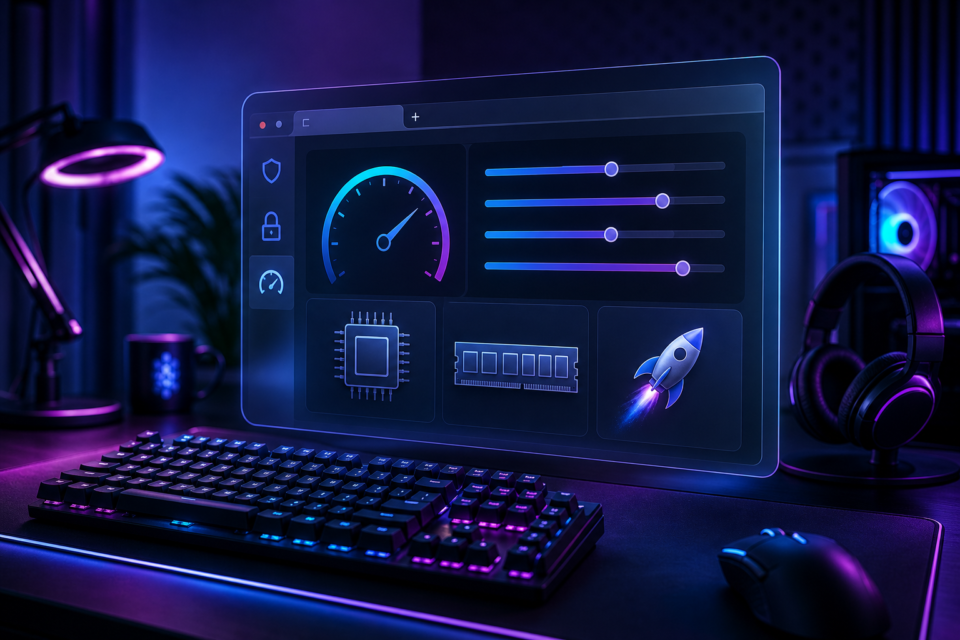
The right browser settings for gaming can reduce stutter, stop distracting notifications and give adult players more control over privacy. No setting can repair a badly designed website, but a few careful changes can make legitimate browser games more stable and easier to manage.
Keep the browser and device updated
Security fixes and graphics improvements arrive through browser and operating-system updates. Install updates from the official source, restart the browser and remove extensions you no longer use. An overloaded extension list can consume memory, alter pages and create conflicts.
Test hardware acceleration
Hardware acceleration allows the browser to use the graphics processor for animation and video. It often improves performance, but an older driver can cause flicker or crashes. If a game behaves badly, compare one session with acceleration enabled and one with it disabled, then keep the more stable option.
Control tabs, memory and cached data
Close heavy video, streaming and social-media tabs before playing. They compete for memory and processing power. If one trusted game stops loading correctly, clear that site’s cached files rather than wiping every saved session automatically. Remember that clearing cookies may sign you out.
- Keep only the tabs needed for the current session.
- Restart the browser after a long period of use.
- Check Task Manager or the browser’s process view for unusually heavy extensions.
- Leave enough free device storage for temporary files.
Review permissions one site at a time
Most browser games do not need precise location, contacts or permanent microphone access. Deny unnecessary requests and grant camera or microphone access only when a feature clearly requires it. Set notifications to Ask or Block so an adult gaming site cannot send unexpected alerts to a shared screen.
Read how to choose safe adult browser games before granting an unfamiliar platform any permission.
Use full-screen and sound controls thoughtfully
Full-screen mode can reduce visual distractions, while a browser’s site-level sound control helps prevent unexpected audio. Check the game’s own accessibility options for text size, animation, contrast and volume. A good adult game should let the player control the experience rather than forcing intrusive effects.
Check the connection without weakening security
A stable wired or trusted home connection can reduce interruptions. Avoid disabling the firewall, browser protection or certificate warnings in the hope of gaining speed. Those controls rarely cause ordinary game lag, and a platform that instructs players to bypass them should be treated with caution. Pause large cloud backups or legitimate downloads instead, then test the game again.
What private mode changes
Private mode usually avoids keeping local browsing history after the window closes and limits long-term cookie storage. It does not make a connection invisible to the website, internet provider or workplace network. For a full explanation, see private browsing for adult gaming.
Gamcore’s pre-play checklist
- Update the browser and graphics driver.
- Close memory-heavy tabs and unused extensions.
- Review permissions, notifications and sound.
- Test hardware acceleration if performance is unstable.
- Use a strong account password and stop if forced downloads appear.
Find more practical guidance in the Browser Games hub. Gamcore publishes independent educational content for UK adults aged 18 and over.
