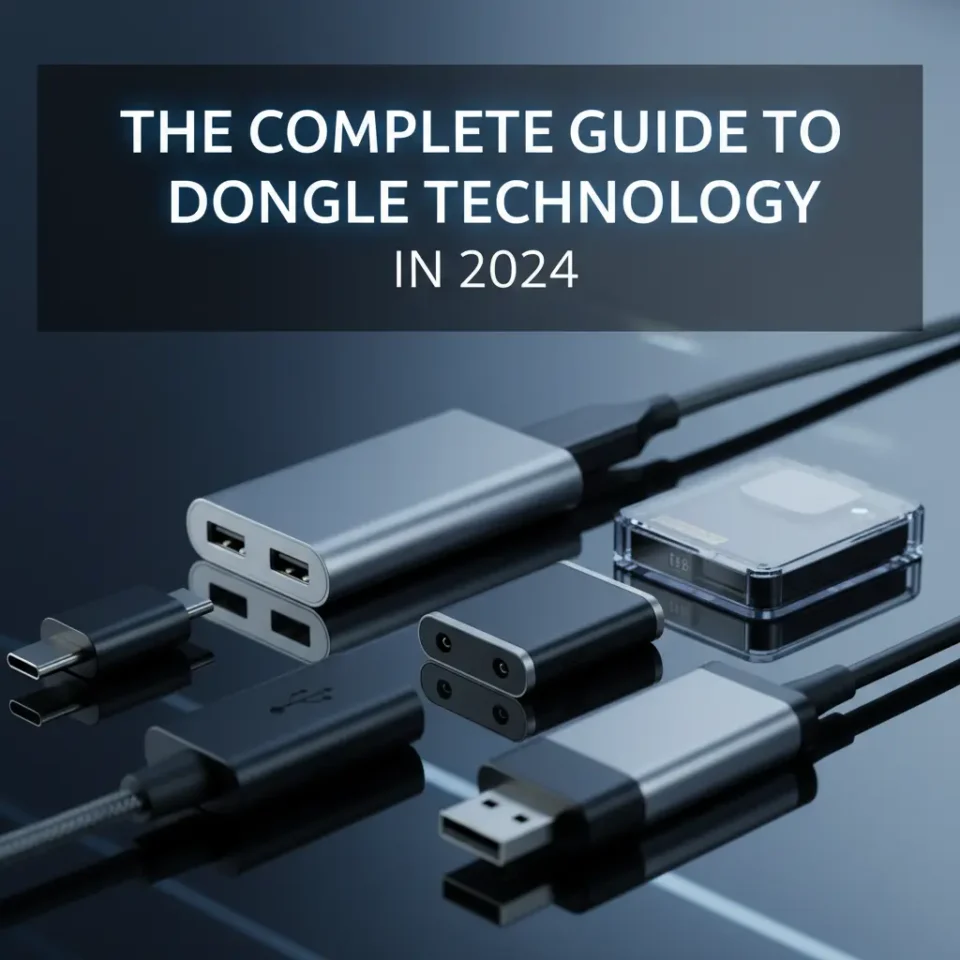
You’re at an important meeting, laptop open, presentation ready—then you realize the conference room only has an HDMI port. Your MacBook has USB-C. Cue the frantic search through your bag for that small, easily misplaced adapter.
If this sounds familiar, welcome to the era of dongle dependency. Once considered a niche accessory for tech enthusiasts, dongles have become an everyday necessity for millions of professionals, students, and creatives. But not all dongles are created equal, and understanding the differences can save you a lot of frustration—and money.
This guide covers everything you need to know: the different types of dongles available, why manufacturers keep shrinking port options, how to choose the right adapter for your needs, and where the technology is headed next.
What is a dongle, exactly?
The term “dongle” originally referred to hardware security keys—small devices that plugged into a computer to authenticate software licenses. Over time, the word expanded to cover almost any small plug-in adapter or receiver, from Bluetooth connectors to video output adapters.
Today, the dongle category includes a wide range of devices, united by one common trait: they extend or adapt a device’s existing connectivity.
The different types of dongles
USB-C adapters and hubs
USB-C has become the dominant port standard on modern laptops and smartphones, but its prevalence comes with a catch—it’s often the only port available. This has made USB-C adapters and hubs among the most popular accessories on the market.
A basic USB-C adapter might convert a single port into HDMI or USB-A. A more advanced hub can simultaneously offer HDMI output, SD card slots, multiple USB-A ports, ethernet, and pass-through charging—essentially turning a slim laptop into a fully connected workstation.
When shopping for USB-C hubs, pay attention to the supported standards. USB 3.2 Gen 2 offers data transfer speeds up to 10Gbps, while Thunderbolt 4 hubs can reach 40Gbps. For video output, confirm whether the adapter supports 4K at 60Hz if you’re working with high-resolution displays.
Bluetooth receivers
Not every peripheral comes with Bluetooth built in. Older keyboards, mice, and audio equipment often rely on dedicated wireless receivers—small USB dongles that handle the wireless communication between device and accessory.
These are particularly common with gaming peripherals, where proprietary 2.4GHz wireless connections offer lower latency than standard Bluetooth. Brands like Logitech and Razer have built entire product ecosystems around their own receiver technology.
Security keys and authentication dongles
Hardware security keys—such as those made by Yubico or Google—represent a different category entirely. These small USB or NFC devices store cryptographic credentials and are used for two-factor authentication, adding a physical layer of security to account logins.
Unlike adapters, security dongles don’t transfer data or extend connectivity. Their value is purely in protection, making them popular among security-conscious professionals and organizations handling sensitive data.
Display and video adapters
For anyone connecting laptops to external monitors or projectors, display adapters are indispensable. Common conversions include USB-C to HDMI, DisplayPort to HDMI, and Mini DisplayPort to VGA. The right adapter depends on both your laptop’s output and your display’s input—a mismatch means no signal.
The “Dongle Life” trend: why minimalist design is winning
The widespread frustration with dongles has a clear origin point: Apple’s 2016 MacBook Pro, which launched with only USB-C ports and a headphone jack. The backlash was immediate and vocal. Tech commentators coined the phrase “Dongle Life” to describe the new reality of carrying multiple adapters just to connect standard peripherals.
But Apple wasn’t acting irrationally. Removing legacy ports allows for thinner devices, larger batteries, and simplified internal architecture. Other manufacturers—including Google, Dell, and Microsoft—have followed a similar path, trimming port variety in favor of USB-C and Thunderbolt.
The result is a market where dongles are no longer optional extras. They’re a structural part of how modern hardware connects to the world. Accessory brands like Anker, CalDigit, and Belkin have built substantial businesses around this shift, offering everything from single adapters to multi-port docks designed for professional setups.
How to choose the right dongle for your needs
With hundreds of options available, narrowing down the right dongle comes down to a few key questions.
What ports do you actually need?
Start by listing the peripherals and displays you connect to regularly. If you need HDMI for a monitor, USB-A for a mouse and keyboard, and an SD card slot for a camera, a multi-port hub makes more sense than buying three separate adapters.
What data transfer speeds matter to you?
For general use—connecting a mouse, charging a phone—speed rarely matters. But if you’re transferring large video files or running external SSDs, the difference between USB 3.0 (5Gbps) and Thunderbolt 4 (40Gbps) is significant. Check the specifications carefully, as manufacturers don’t always make this obvious on packaging.
What video output do you need?
A standard 1080p monitor will work fine with most USB-C to HDMI adapters. Running a 4K display at 60Hz is more demanding—confirm your laptop’s GPU supports the resolution and that the adapter explicitly states 4K/60Hz compatibility. Some cheaper adapters cap out at 4K/30Hz, which can look slightly choppy with motion.
How much should you spend?
Budget adapters can work well for occasional use, but quality varies significantly. For a primary work hub that stays on a desk, investing in a reputable brand reduces the risk of connectivity issues, overheating, or poor video signal. Expect to pay $50–$150 for a reliable multi-port hub, and $10–$30 for a quality single-purpose adapter.
The future: wireless technology vs. physical adapters
The logical endpoint of the dongle conversation is no dongles at all—a world where wireless connectivity handles everything a physical cable currently does.
Progress is already underway. Wi-Fi 6E and the emerging Wi-Fi 7 standard deliver speeds fast enough to handle 4K video streaming and large file transfers without a wired connection. Wireless display technologies like AirPlay, Miracast, and WiDi are increasingly common in office and home setups. Bluetooth 5.3 has improved range and stability compared to earlier versions.
But wireless connectivity hasn’t made physical adapters obsolete—and won’t anytime soon. Latency remains a legitimate concern for audio production, gaming, and video editing. Wireless connections are also more susceptible to interference in crowded environments. And many legacy devices—projectors, wired ethernet networks, older monitors—simply don’t support modern wireless protocols.
The more likely near-term outcome is a hybrid landscape, where USB4 and Thunderbolt 5 consolidate the physical side (offering up to 120Gbps in the case of Thunderbolt 5), while wireless standards continue to mature in parallel. The goal for most manufacturers is universal connectivity: fewer cables and adapters, without sacrificing performance or reliability.
Making peace with the dongle
Dongles are, admittedly, a byproduct of the tension between minimalist hardware design and the messy reality of legacy technology. They’re not elegant, and carrying a bag full of adapters isn’t anyone’s idea of progress. But for now, they’re the practical bridge between where hardware is and where it needs to be.
Understanding the differences between adapter types, knowing what specifications actually matter for your use case, and investing in quality where it counts will make the dongle-dependent life considerably less frustrating. And as wireless standards continue to evolve, the reliance on physical adapters should gradually—if not dramatically—decrease.
Until then, keep a USB-C to HDMI adapter in your bag. Trust us.
