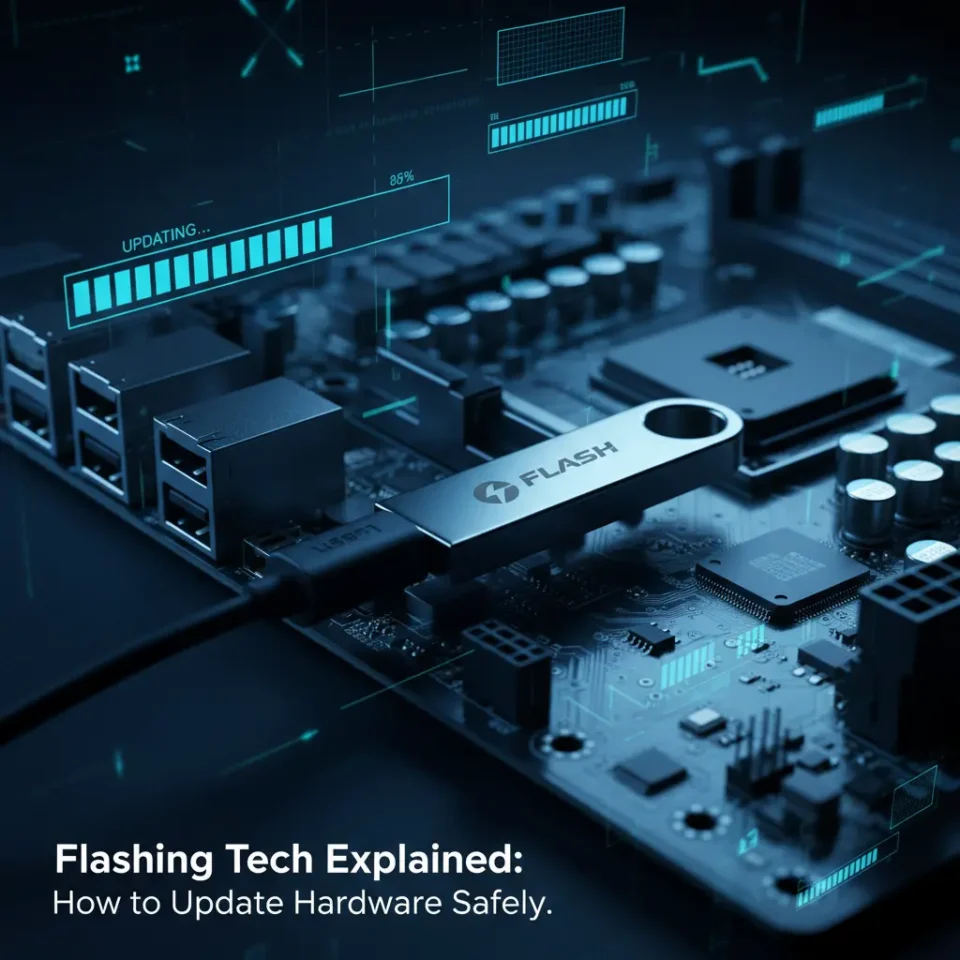
Every electronic device you own relies on a core set of instructions to function. This foundational software, known as firmware, dictates how your hardware operates. As technology advances, manufacturers constantly discover ways to improve device performance, patch vulnerabilities, and add entirely new features long after the product leaves the factory floor.
Getting those improvements onto your device requires a specific process known as flashing. Flashing tech refers to the act of overwriting the existing firmware or data on an EEPROM (Electrically Erasable Programmable Read-Only Memory) module with new data. While it sounds highly technical, it is a routine procedure that keeps modern industry running smoothly, from your smartphone to massive industrial control systems.
Understanding how to navigate firmware updates safely ensures your devices run at peak efficiency. This guide covers the evolution of flashing technology, the major benefits of keeping your hardware updated, and the exact steps you need to follow to avoid permanently damaging your equipment.
The Evolution of Firmware Updates
Early hardware programming required physical intervention. Engineers had to manually remove ROM (Read-Only Memory) chips from circuit boards, erase them using UV light, and reprogram them with specialized equipment. Updating a single piece of hardware was incredibly time-consuming and expensive.
The invention of EEPROM and flash memory changed everything. Devices could suddenly be rewritten electronically without removing any physical components. This breakthrough allowed users to connect their devices to a computer via a cable and transfer new firmware directly.
Now, we see this process happening almost invisibly. Many consumer and industrial devices rely on Over-The-Air (OTA) updates, where the hardware downloads and flashes the new firmware entirely via a wireless network. This evolution has made continuous improvement a standard expectation for modern electronics.
Key Benefits of Flashing Tech
Taking the time to flash your hardware with the latest firmware offers several distinct advantages. Manufacturers release these updates to address specific issues and enhance the user experience.
Performance Optimization
Hardware can often perform better than its original factory settings allow. Developers refine the code over time, discovering ways to make processes run faster and consume less power. A simple firmware flash can extend battery life, speed up processing times, and resolve frustrating bugs that cause system crashes.
Critical Security Patches
Cyber threats constantly evolve, and hackers frequently target vulnerabilities in outdated firmware. Flashing the latest security updates closes these loopholes. For industrial equipment and enterprise servers, applying these patches is a mandatory practice to protect sensitive data and prevent unauthorized network access.
Step-by-Step Guide on Safe Flashing Procedures
Updating your device’s firmware requires careful preparation. Skipping steps can lead to severe hardware failures. Follow this general procedure to ensure a smooth flashing process.
1. Back Up Your Data
Always assume something might go wrong. Save all personal files, configuration settings, and essential data to an external drive or cloud storage before you begin.
2. Verify the Firmware Version
Downloading the wrong firmware is a primary cause of hardware failure. Check your device’s exact model number, hardware revision, and current firmware version. Match this information perfectly with the update file provided on the manufacturer’s official website.
3. Secure a Stable Power Source
A sudden loss of power during the flashing process will interrupt the data transfer. If you are updating a laptop or mobile device, ensure the battery is fully charged and plugged into a wall outlet. For desktop computers or routers, consider using an Uninterruptible Power Supply (UPS).
4. Execute the Update
Launch the manufacturer’s designated flashing tool. Load the verified firmware file and initiate the update.
5. Wait for Completion
Do not touch the device, press any buttons, or disconnect any cables while the update is running. The system may reboot several times. Wait until you receive a clear confirmation message that the flash was successful.
Common Risks and How to Avoid “Bricking”
The term “bricking” refers to a device that becomes completely unresponsive and unusable—effectively turning it into a very expensive brick. This usually happens when the flashing process is interrupted, leaving the device with a corrupted, incomplete set of operating instructions.
You can avoid bricking your hardware by strictly adhering to the preparation steps. Never force an update meant for a different device model. Avoid flashing your hardware during a thunderstorm or any situation where power outages are likely. Finally, never unplug a device while the progress bar is still moving, even if it appears to be stuck. Give the system ample time to process the new data.
Future Trends in Automated and Remote Flashing
The future of hardware programming heavily favors automation. The automotive industry already utilizes remote flashing to update vehicle engine control units and infotainment systems while the car sits in the owner’s driveway.
We are also seeing massive growth in the Internet of Things (IoT) sector. Managing thousands of deployed sensors requires automated flashing protocols that can update entire fleets of devices simultaneously without human intervention. Security algorithms are becoming more sophisticated to ensure these remote OTA updates cannot be intercepted or tampered with by malicious actors.
Keeping Your Hardware Ahead of the Curve
Flashing tech is a fundamental requirement for maintaining healthy, secure, and efficient electronic devices. By understanding the evolution of firmware programming and respecting the required safety procedures, you can easily optimize your hardware’s performance and extend its lifespan.
Check your primary devices today. Visit the manufacturer’s website, locate the support section for your specific model, and see if a firmware update is available. A few minutes of careful updating can unlock a noticeably better hardware experience.
